Lab: Rootly Powers.
Step 2: Starting Out and Users
- You should have a running version of the RootlyPowers virtual machine running. If you do not, please return to Step1: Setup.
- This machine is running Bodhi Linux
- This is a lightweight linux distribution.
- But it comes with g++ installed.
- Log in
- There are two users on this machine
- Bob, username bob, password bob.
- Alice, username alice, password alice.
- The main difference is that Bob has permission to execute the
sudocommand and Alice does not. - Log in as Bob, with password bob.
- There are two users on this machine
- A quick tour of the environment
- The button on the lower left is equivalent to Window's start button.
- You can use this to search for applications and tools.
- You can also get a quick start menu by left clicking on the desktop.
- Bob's account has been setup with an editor, file browser, terminal and web browser quick start buttons on the lower left hand corner of the screen.
-
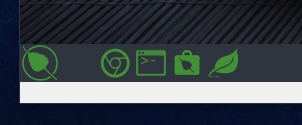
- Take a few moments to make sure you can start each of these.
-
- The logout button in on the lower right.
- The icons on the middle right of the screen are a quick desktop switcher.
- Start a terminal.
- Notice it is only pictured in the top screen.
-
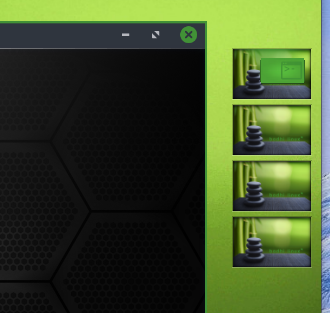
- Click on the second "screen" down
- Note this moves you to a different "virtual" desktop.
- Start a browser in this desktop.
-
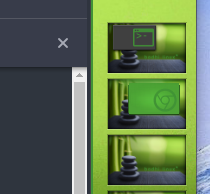
- Notice, you can drag items between desktops.
- Click on the second "screen" down
- The virtual desktops are useful if you want to deal with different accounts at the same time.
- Work as Bob in the first desktop.
- Work as Alice in the second desktop.
- Start a terminal.
- The button on the lower left is equivalent to Window's start button.
- Commands
- Throughout the rest of the lab, we will be using a number of different *nix commands.
- While you are not expected to memorize these commands, you should "know" them.
- They are part of a toolkit for examining and using a *nix operating system.
- They allow us to see the state of the machine.
- You should probably keep a list of these commands that you can refer back to in the future.
- Throughout the rest of the lab, we will be using a number of different *nix commands.
- Starting a terminal "as Alice".
- For comparison, we would like to have a terminal with Alice logged in.
- The command
suallows you to change users if you have the proper credentials. - Start a terminal
- Issue the command
su - alice- This will prompt for Alice's password, which is alice.
-
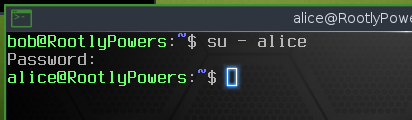
- Who is the current user
- Return to the terminal.
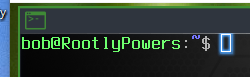
- This is logged in as user Bob.
- The prompt shows Bob's name.
-
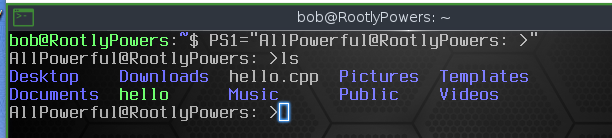
- Unfortunately, this is easy to change.
- Try typing
PS1="AllPowerful@RootlyPowers: > "
-
- If you are interested, Bob is running the shell
bash - You can learn how to change the prompt here
- However, you probably want to start a new terminal back with the default prompt.
-
whoami- The command prints the user name.
-
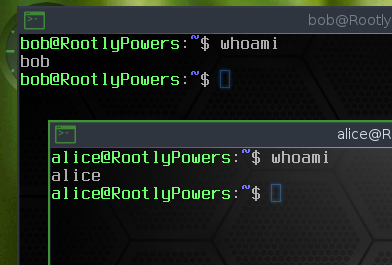
- Try this.
-
id-
idprovides more information thanwhoami - And has command line options, or options, or flags.
-
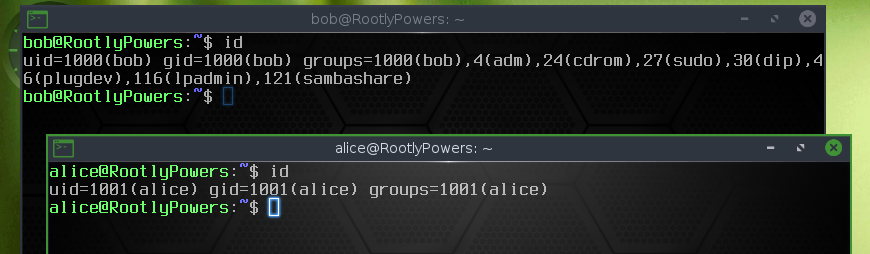
- Try this.
- Notice that we can see :
- Bob has user and group id 1000
- Alice has user and group id 1001
- Bob is in other groups
- adm, cdrom, sudo, dip, plugdev, lpadmin, sambashare
- While Alice is not.
- Your results will probably be a bit different as more groups will be added to the machine for future portions of the lab.
- We will discuss users and groups later in this lab.
-
- The
mancommand- Unix, and hence linux, were designed with a built in manual system.
- To look up a command type
man command- Try this with
id -
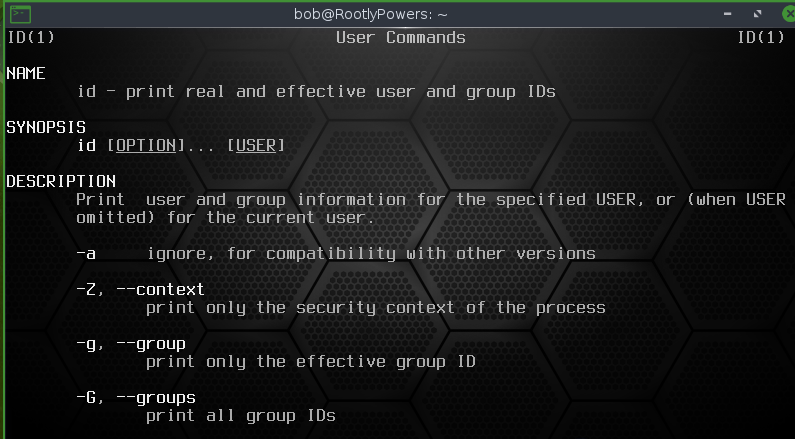
- Try this with
- This provides a description, arguments and flags and other useful information for the given command.
- What will the following do?
-
id alice -
id -G -
id -uz
-
- What will the following do?
- You should use the manual every time you encounter a new command.
- Working as root
- Since Bob is in the sudo group, this account can execute the
sudocommand. - This allows Bob to "become" root.
- Try
sudo -i- You will be asked for Bob's password (bob)
- Now try
idandwhoami -
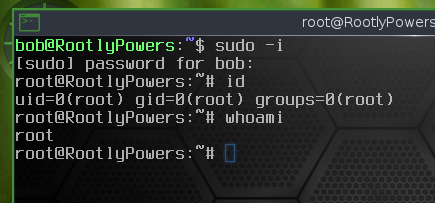
- In issuing this command you have effectively become root.
- Notice root's id is 0.
- This is a deeply embeded constant in *nix systems.
- Running a process with id 0 provides all of the administrative powers.
- We will discuss other things root can do later in the lab but for now, as root, try
-
su - alice - Notice, it does not ask for Alice's password.
-
- Browse the man page for
sudo - We will discuss
sudofurther.
- Since Bob is in the sudo group, this account can execute the
- Root has the ability to become any other user on the system without a passowrd.
- This is built into the sudo command.
- A very basic algorithm might look like this:
get the userid
if the userid is not 0
    ask for the password
    if the password is not correct
       log security volation
       exit
Allow the user to become the desired new user.